To run RV interactively, on either VAX/VMS platforms or the Sun SPARCstation and DEC Alpha Unix-based platforms, simply type:
The program then outputs prompts and accepts commands.
Input to RV is free-format, with spaces separating the fields (comma is also acceptable as a field separator within coordinates). Both upper- and lowercase letters are acceptable. Blank lines cause the previous values for the particular record to be taken, thus allowing (for example) velocity components for several sources to be tabulated without the observatory position or the date having to be entered more than once.
A version of RV with a simple X–windows Graphical User Interface is also available on the supported Unix platforms. It requires the TCL/TK system and the EXPECT interactive program driver – these are part of the Starlink core system. To run this version, simply type:
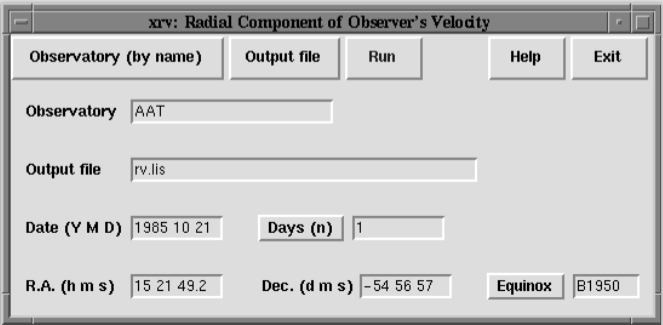
The window shown below will appear.
Default input parameters are already set in the entry boxes to act as guides to the required format. These entries can be edited by clicking on the entry box for a given parameter and editing that entry using Backspace and the left and right arrow keys.
The “Observatory (by name)” button at the top can be used to bring up a menu of all supported observatories. To select an observatory, locate the relevant entry using the scroll bar and either double–click on the entry or single click on it and then click on OK. The observatory identifier will automatically be copied into the Observatory entry box.
The “Output file” button brings up a file browser with which you can select an alternative output file name (the default is rv.lis in the current directory). The left hand panel is used to select a directory by double–clicking on the entry. The right hand panel is used to select the file name by either double–clicking on the file name or single–clicking and then clicking on the OK button. The name of the output file will automatically be copied into the Output file entry box.
All other entry boxes have to be modified manually, as indicated above, although the “Equinox” and “Days (n)” pull–down menus can be used to quickly select commonly used values.
Once all the input parameters have been correctly set (particularly the output file), click on the red run button. A dialog button will pop up to confirm that the program has successfully run and confirm the output file name.
The “Help” button brings up brief usage instructions and input parameter formats.
The “Exit” button terminates the program.
The report produced by xrv is identical to that produced by the terminal mode version of RV; xrv produces its report by running the terminal–mode rv on your behalf.